Automation scripts and everyday helpers
Hearthborn includes task-specific helpers and saved field and milk-collection scenarios in its action menus. They automate repetitive interactions with nearby objects, inventory items, animals, and crops.
The Xtensions menu also contains actions related to travel, mining, and deploying travel equipment. The specific commands documented below focus on production, farming, animals, and everyday interactions.
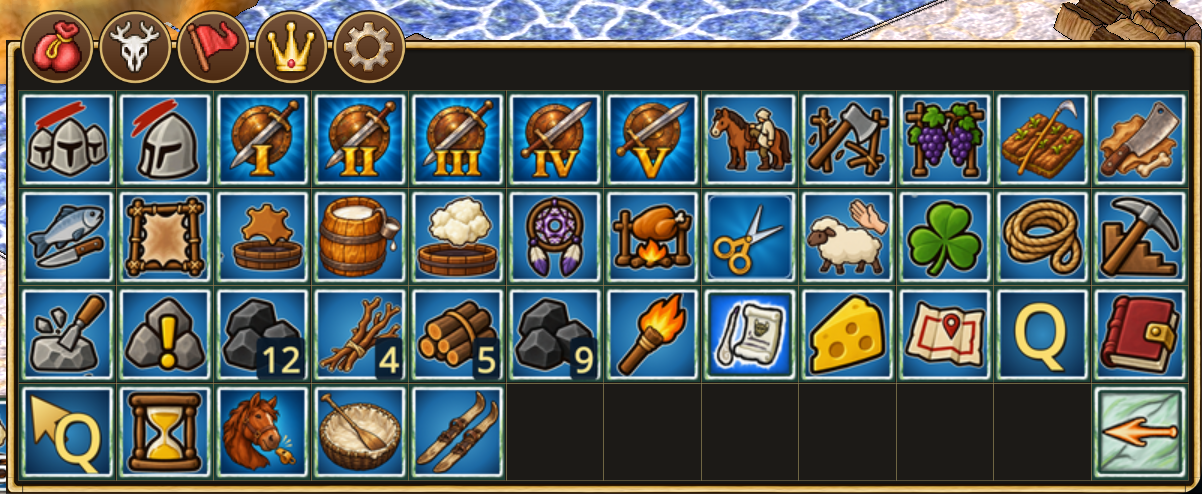
In the sidebar menu, helpers are grouped into Combat, Farming, Animals and products, Mining, Furnaces and fuel, and Journals. Categories keep this order in either language, before standalone actions. Farming contains fields and trellises. Animals and products contains livestock care, butchering, drying, tanning, fish, roasting, cheese trays and dream collection. Journals contains the quality roster and recording switch, personal/village claim plan, cheese chart and the native cattle roster, timers and quest journal. The cheese chart also appears under Animals and products; both shortcuts open the same window. The cattle roster is only in Journals. Coracle, skis and horse are available directly in Xtensions. Existing action shortcuts and saved toolbar buttons retain their identities. In Interface display → Xtensions menu, choose Normal (4×4) for category navigation, Upward (4×12) (the default), or Sideways (12×4). Sideways opens toward the screen center: left from the right corner, right from the left corner. Both expanded views show every helper directly, in category order, without duplicate cheese-chart shortcuts. They fit the available screen and open above other windows. Selecting a command, clicking outside the menu, Back, or Escape restores the base 4×4 menu. Outside clicks still reach their target; More keeps the overview open. The choice is saved and takes effect immediately. Other menus and sidebar navigation keep their usual layout. The wheat sheaf opens Farming; the field with sprouts and a scythe opens Process field. A cow, pickaxe with stone, burning oven and open book identify Animals and products, Mining, Furnaces and fuel, and Journals respectively.
Crop growth stages
Hearthborn can display the growth stage of crops in fields directly above the plants.
By default, growth indicators are shown only for crops that are ready to harvest, keeping the field view less cluttered. Hold Shift to temporarily reveal the growth stages of crops that have not yet matured as well.
Before you start
- Make sure the required items, tools, and nearby objects are available as described for each command.
- Escape stops the script from taking further steps. It does not undo actions already completed or reverse changes sent to the game.
- A command cannot create missing resources or bypass game requirements. Its scope is limited to the actions described below.
Fuel and firing
Add five logs
Adds five logs to a supported nearby target. Have the required logs available before starting. This is a fuel-loading action, not an ignition command; it does not light the fire.
Add four branches to an oven
Places four branches into the nearest oven. Branches are taken only from the main inventory; the command does not search other containers or storage.
It does not light the oven. Press Escape to stop any remaining steps; branches already added stay added.
Add nine coal to a smelter
Loads nine pieces of coal into a smelter, using coal from the main inventory. This command targets smelters, not smokehouses.
It does not ignite the smelter or obtain coal from other storage. Escape stops further steps, not fuel already inserted.
Add twelve coal to a smelter
Loads twelve pieces of coal into a smelter, using coal from the main inventory. Smokehouses are not included.
Like the nine-coal command, it does not ignite the smelter. Escape only cancels subsequent actions.
Fuel commands do not start fires. Use the separate torch-lighting command when appropriate.
Production stations
Collect finished items from drying frames
Collects finished contents from drying frames in the already loaded surrounding area.
Shift + the same action instead hangs raw hides on drying frames. It does not search unloaded areas or guarantee that every frame is ready or usable. Escape stops the remaining operations without returning collected items or removing hides already hung.
Collect finished leather
Collects finished leather from tanning tubs.
Shift + the same action instead loads dried hides into the tubs. It does not dry hides or complete tanning instantly. Escape prevents further steps but does not undo completed transfers.
Fill cheese trays
Fills open, empty cheese trays using curd. The command requires at least four pieces of the same curd.
If a different kind of curd appears on the cursor, the script stops. It does not mix curd types, open closed trays automatically, or create missing curd. Escape stops further filling without undoing trays already filled.
Light with a torch
Takes a lit torch from the character's hand, uses it to light the nearest supported target, then returns the torch to its original place.
Supported targets include a nearby oven, smelter, crucible, kiln, or cauldron. The command does not create or ignite an unlit torch, add fuel, or start unrelated production steps. Escape cancels further steps but cannot undo a fire already lit.
Butcher fish
Processes fish in the inventory until no fish remain to process.
It does not obtain additional fish from the world or storage. Escape stops subsequent processing; fish already processed stay processed.
Animals and trellis crops
Saved crop fields
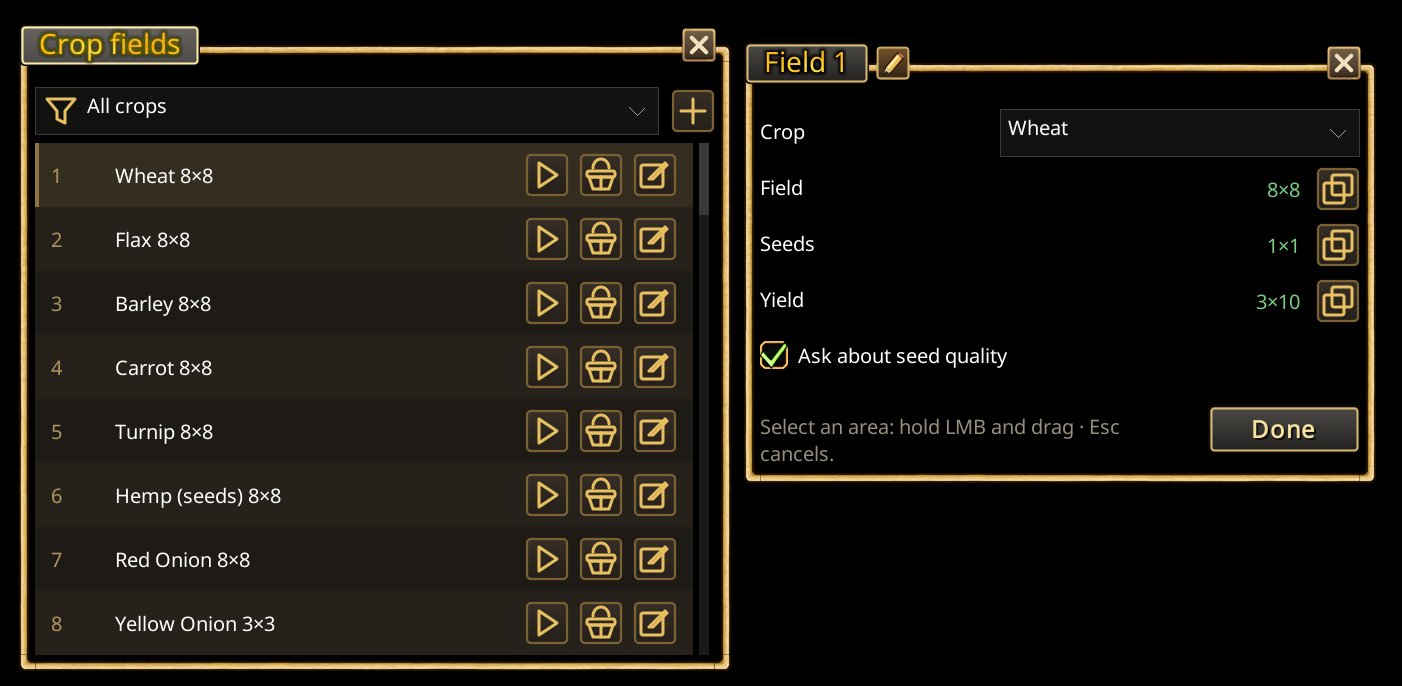
Find the harvest basket and curved sickle on a blue background in Xtensions → Farming → Process field. The + button immediately opens the crosshair for its boundaries. Select the cupboards or chests holding its seeds and a separate area for harvest stockpiles. Fields use editable numbers; several fields can be saved for each account, character and world. The main window shows a compact list of fields: a crop filter ("All crops") and a + button on top, then one row per field with its number, crop and size, and icon buttons ▶ Process, a basket Harvest only and a pencil Edit; the names are in the tooltips. An unconfigured field reads "Not configured" and has a Configure button. A scroll bar appears for many fields. Edit, Configure and + open a separate small Field N editor window: the crop, three rows (field, seeds or planting reserve, harvest) each with a status ("✓ 8×8" or "not set") and a select icon, the "Ask about seed quality" check box, one gray hint line and Done. A new field takes the first free number; the pencil in the editor title changes it. While a map selection runs the editor is hidden and the list shows a single status line with a small ✕; Esc cancels too. Normally, activating Process field while standing inside a configured saved field starts it immediately. The Crop fields window opens with that field's row highlighted, showing its crop, progress and Pause / Continue and Stop; there is no separate run window. The row stays bound while the character visits storage. Reopening the action raises the window without restarting work; closing it lets work continue. Shift-click on the menu action opens the list without starting work. Outside saved fields, or when settings are incomplete, management opens instead. Overlapping fields require an explicit choice from the list. An unfinished cycle keeps its progress and Harvest only mode; a completed field starts a fresh Process cycle on the next launch. If map data is still arriving after a selection, keep the window open: the client retains the selection and retries for up to 15 seconds. The status distinguishes loading map grids from loading crop data. Once map geometry is available, boundaries are saved independently of crop detection. If crop data stays unavailable, choose the planting crop manually. Manual selection saves immediately, even if map or plant data is unavailable; it also ends pending crop detection once boundaries are saved. Reselecting boundaries for a manually chosen crop does not run automatic detection. Starting the helper still checks the live field before issuing actions. Objects without a base model/resource do not block crop detection; genuine resource loading still delays actions. During startup, the row shows the current check instead of reporting that the field is ready. Cancel while dragging keeps the old boundaries; after the new boundaries are saved, Cancel only stops waiting for crop detection. Select field can change boundaries whenever the script is stopped, including after partial planting. Confirming a new area resets the old area's cycle progress and recorded sowing quality, retaining the field number, name and storage zones. Plants on the ground are unchanged. Cancelling the drag retains the previous boundaries and progress. Stop a running or paused script first. During a run, its row shows progress and Pause / Continue and Stop; other fields cannot start until it finishes or stops. An 8×8 wheat field uses 320 seeds (five seeds per tile).
The shared engine supports wheat, barley, flax, hemp grown for seeds, pipeweed, carrots, turnips, red onions, yellow onions, garlic and leeks.
Leeks are replanted from the mature leek itself, one per tile. Leeks and their stacks occupy 1×2 inventory cells, vertically; transfers, planting loads and cursor returns require contiguous space of that shape. Best leeks are kept for planting and surplus goes to leek stockpiles. Earlier seed-stage plants are left growing; seed-leek items are not used for this mature-leek cycle.
The pencil in the editor title opens a small Field number window; confirm with Save or Enter. Numbers must be positive whole numbers and unique across your saved fields; an occupied number is rejected. The list sorts numerically, both claim plans use the same number, and new fields receive the first free number. Renumbering retains the field's boundaries, crop, progress and recorded sowing quality. Fields show a plain number, such as 7, with no separate name or “№” prefix. The number is the single identifier shown in the field list, both plans and System messages; crop and quality remain additional information. Older saved names are hidden.
Pipeweed yields seeds and fresh leaves. The best available seeds are used for replanting (five per tile), remaining seeds stay in the configured seed storage, and leaves go into pipeweed stockpiles in the harvest area. Leaf drying is not part of this cycle. You can start with less planting material than the full field needs. For example, three stacks of three onions plant nine empty tiles. When the stock runs out, the runner reports how many tiles it planted and how many remain empty, including in System chat, then finishes the run. There is no unfinished planting cycle to complete. Add more planting material and use Process again: the new run recounts live plants and empty tiles instead of trusting old planting counters. Growing plants and their known sowing quality are retained; ripe crops of the chosen type can be harvested during the new run as usual. Detect from plants identifies a single crop before harvesting, including young plants. Mixed areas can be saved with a warning: choose Edit → Crop to plant → Leek, or another desired crop. Manual choices persist and are not replaced by detected plants. In mixed areas, or when another crop occupies the field, processing preserves all existing plants, even ripe ones, and plants only empty tiles. Harvest the old plants manually when ready. The warning also appears in System chat. A single unsupported crop cannot be detected automatically. Each card shows its number, crop and dimensions. Empty areas retain the saved crop. For a newly added empty area, choose Crop to plant; no crop is guessed from inventory contents. Old wheat fields, their names, storage zones, progress and toolbar assignments remain available. Automatic selection can detect a different crop for a new cycle; an unfinished cycle cannot silently switch crops.
In Edit, the shared Ask before planting below the quality roster record option controls a check after quality selection and before sowing. It is off by default: if the same crop has a journal record above the best available planting quality, System chat reports the selected quality range and the journal record. When enabled, a dialog offers Continue anyway or Cancel before planting. Approval covers the current reserve without asking after every batch; cancelling keeps the field's progress. Journal records are compared by crop, including separate red/yellow onions. The option applies to all fields.
Wheat and barley produce straw; flax and fully ripe hemp produce their own fibres. Hemp's earlier bud stage is retained to mature for seeds (barley, flax, hemp stages). The runner picks up the harvest that falls on the ground with a native Shift + right-click, so the server collects it in bulk instead of one click per item. If the server stalls or refuses, the runner falls back to one click per item for the rest of the run. Roots such as carrots are still picked up one by one.
For seed crops, the area may be partly planted or completely empty. The runner harvests all mature plants of the saved crop in the area, unloading seed packets as inventory space runs out. Only then does it compare the old stock with the harvest and reserve complete planting batches for empty tiles, including gaps present at launch, in descending quality. Young plants are retained and are not planted over. The best batches are planted from the top-left edge, row by row. Packets of fewer than five seeds are kept but cannot be planted automatically; combine them yourself if needed.
Seed packets unload as a batch into the open cupboard or chest, without cursor moves or reopening it for each packet. Before sowing, the runner collects the best packets for all remaining tiles. If they do not fit, it fills the inventory and uses that whole load before fetching another. Whole packets are loaded; unused seeds return to storage.
Sowing uses the native area selector with seeds in inventory; a scythe can remain equipped. A load of one quality allows automatic native packet refill. Mixed qualities use sections bounded by the best packet's capacity so native refill cannot accidentally choose a worse quality. Pause interrupts native sowing; resuming checks the plants that actually appeared.
With a scythe equipped, the runner starts native harvesting over the entire saved field. The character reaps continuously, without separate commands and waits for each tile. It interrupts for seed unloading, drinking or Pause, then resumes from the remaining plants. It requires eight free inventory cells before starting and interrupts to unload seeds when that reserve decreases. Crop and seed receipts must settle before sowing. The native scythe footprint is not clipped to the selected area and can harvest crops outside its edge (scythe behavior).
After planting, it collects the crop's product. Existing matching piles receive the inventory contents through native Shift+RMB with the harvested product held, without opening their windows; new piles use Shift+LMB to deposit matching inventory contents at creation. If product remains after a transfer, the runner opens the pile to read its actual capacity: 1/45 means room for 44 more items. No transfer alone does not prove the pile is full: if room remains but depositing fails, the runner reports an access problem and saves progress. New piles stay inside the selected zone on every second tile, leaving aisles. All remaining seeds go back to the designated seed storage; none are discarded or mixed across qualities. Keep sufficient free storage space and keep both storage zones within forty tiles of the field.
Carrots use a bounded planting reserve. Select a cupboard or chest area for the reserve and an output stockpile area. A dedicated empty 64-cell cupboard can hold the best 64 individual carrots for an 8×8 field; it does not have to hold the entire harvest. Each new batch is compared with the reserve: better roots replace worse ones, and surplus goes into the output piles. Carrots already in the designated cupboards participate too. Existing stockpiles are output only; their old contents are not searched for better quality. Turnips use the same root-crop cycle: one turnip per empty tile, the best roots kept for planting, ground overflow collected before sowing, and surplus stored in turnip piles. There is no separate leaf product to collect. Red and yellow onions use the same cycle: one bulb per empty tile, the best bulbs from the harvest and designated cupboards reserved for planting, and surplus sent to onion stockpiles. Each field contains one onion variety; planted fields are detected automatically, while empty fields use the saved or manually chosen variety. Garlic follows the same cycle: one whole bulb per empty tile, the best bulbs from the harvest and storage for replanting, and surplus in onion stockpiles. Individual cloves are not planting material. Whole bulbs can be recorded in the quality roster's Farming tab for the planting reserve comparison. Sowing automatically adds or improves the record when at least five usable items of the same quality are available; a higher historical record is preserved. Existing cupboard stock above one planting is retained. At equal quality the stored carrots take priority: surplus from the backpack is unloaded first, then only the carrots needed for sowing are fetched. Stored roots are displaced only when space is needed for a better planting reserve. To fill an existing carrot pile the runner uses Shift+RMB with a carrot held. To create one it first uses normal RMB with the held carrot on unplowed ground, then Shift+LMB to place and fill it. Plowed tiles are skipped even outside the saved field, because ground-use there can plant the carrot instead.
The runner harvests the final root-producing stage, collects overflow from the ground before sowing, and plants one selected carrot per empty tile. The runner drops a single leftover cursor carrot beside the character before starting or after native harvesting, waiting for the cursor to clear. If dropped inside the field or output area, it participates in subsequent ground collection. The earlier seed-producing stage is left growing. Reserve comparisons read individual qualities inside stacks. Before unloading surplus, the selected planting reserve is put in the designated cupboards. The remaining inventory carrots are deposited with native Shift bulk actions, filling existing piles and creating new ones without returning to the cupboards between piles. All selected roots may use native refill; their order within the field is not guaranteed. Harvest only stores the whole new harvest without sowing or changing the existing cupboard reserve. Reserve storage must have enough room for one planting, and output space must hold the surplus. See carrot growth stages and planting.
Before sowing from outside the planting area, the runner walks there with local pathfinding to go around cupboards and other obstacles. Pause stops this approach; Continue plans it again from the character's current position. Stockpile transfers also use local pathfinding. Before creating a new pile the runner moves to a clear standing point beside it; full piles are inspected and skipped automatically when a bulk transfer leaves products in inventory. If an approach is blocked, it tries another side and then another placement tile. Retries are bounded; repeated failures stop the helper for manual intervention.
The menu action Process field opens the saved field list without starting work. Press Process on the desired row to start or resume the full cycle. Harvest only reaps mature plants and stores seeds and produce without sowing; it does not require enough seeds for a full planting. Its mode and progress are saved. Process can subsequently sow the empty tiles; changing modes checks the live field. Pause pauses the run, interrupting native area sowing. Stop, Escape, manual movement and manual inventory/stockpile commands stop subsequent steps. Saved progress is checked against the actual plants when resuming, including after login. A partly harvested area can resume immediately after stopping. After completion, the next launch checks the live plants again and fills gaps.
Clicking a saved field in the list shows its bounds on the ground with a gold outline and translucent fill. Double-click its number/row text to walk to the nearest field tile with local pathfinding, without starting field processing. Both clicks must be on the same row, using the system double-click interval. The saved area must be loaded and within the local route range (40 tiles). An active script blocks this shortcut; if already inside the field, no movement is sent. It also works when automatic ground-click routing is disabled. Click the Field, Seeds or Harvest summary line to preview that saved area instead. Previews require the area to be loaded; they hide while drawing a new selection and disappear when the window closes.
If auto-drink is enabled, the runner drinks between actions, returning any held seed packet first. Missing seeds, changed plants, unloaded areas, blocked placement, missing water or full storage stop the run with progress retained. Fields support up to 256 tiles. Seed barrels/buckets, sprouted grains and other crops with different root/fruit/planting cycles are not supported yet. Further crops can be added through profiles in the same engine. Live-server verification is still needed.
Harvest trellis area
Choose the command, then use the gold crosshair to drag a rectangle around the trellis row. The helper visits every ripe trellis plant inside, including several trellises in the same tile. It skips young plants and bare trellises, and waits for each plant to change after harvesting before continuing. Keep your scythe equipped. The command does not replant or process the harvest. A full inventory or an unreachable plant stops the run; select the area again to continue.
Escape stops further actions but does not undo a completed harvest.
Destroy plants in trellis area
Choose the command, then draw a rectangle with the crosshair. It destroys all trellis plants inside, including young plants, while leaving bare trellises and other crops alone. Each plant is targeted by its own object ID, so three trellises in one tile are all included. It waits for each removal before moving on. The previous action IDs and toolbar assignments remain valid.
Escape or repeating the command cancels selection/work. Manual movement stops an executing operation. Destroyed plants cannot be restored. If automatic drinking is configured, the helper drinks between plant operations.
Shoo the nearest animal
Shoos the nearest stationary supported animal: horse, sheep, cow, pig, or goat.
It does not target moving animals or other species. Escape stops any remaining actions; an animal already shooed will not be recalled.
Clover
Feeds clover to a stationary, tameable animal. The command does not tame arbitrary animals automatically or pursue a moving target.
Escape stops further actions but does not reverse feeding already performed.
Rope
Takes a rope from the inventory and leaves it on the cursor for the player to use.
It does not automatically attach the rope to an animal or return it to inventory. Escape stops further script steps; it does not necessarily clear the item already on the cursor.
Call and mount a horse
Calls and mounts a horse. If the horse is far away, the command whistles first.
The command does not start if the character is already mounted or is in a boat. It does not guarantee that an unavailable horse will arrive. Escape stops any remaining steps, not a whistle or mounting action already performed.
Dismount a rider
Uses the nearest stationary horse for the dismount-rider action.
It does not seek out moving horses or distant targets. Escape cancels subsequent steps but cannot reverse a completed action.
Additional everyday helpers
Collect milk and report quality
Collects milk and reports the quality of the milk obtained. The reported value reflects the collection performed by the helper; it is not a prediction of future milk quality.
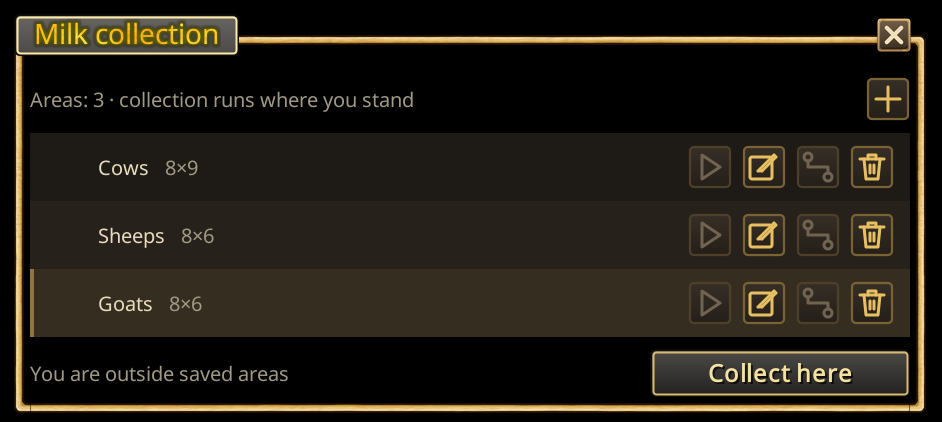
Enter the pen before starting. Inside a saved pen, collection starts there; outside all saved pens, the helper asks you to select a new one. The new pen is added alongside the others, so cows, sheep and goats can each keep their own area. Saved pens survive login and are scoped to account, character and world. The earlier single saved pen is retained automatically. Animals are found again inside the selected boundaries on every run.
Area selection shows a gold crosshair and rectangle cursor, with instructions on hover. Hold the left mouse button and drag around the pen, including your character. Escape cancels selection. Empty or mixed-species pens do not replace your saved areas during a collection launch.
Shift-click the milk command to open the saved collection areas. Each row shows the area's name and size with icon buttons: ▶ Collect milk here, a pencil, Change boundaries and a trash can Delete area; a pin marks the area containing your character. The footer says which area you are in and has a Collect here button. The pencil turns the name into an input (“Cows”, “Sheep”, “Goats”); the ✓ icon or Enter saves it. Names survive login; existing areas are retained as “Area 1”, “Area 2”, and so on until named.
Clicking a row also highlights that area on the ground with a gold outline and translucent fill. The area must be loaded. Closing the window removes its preview.
The + button saves another rectangle; Change boundaries edits the selected area when your character is inside it and keeps its name. Cancel area selection, Escape or closing settings releases map selection. Collect milk here uses your character's position, independently of the selected row.
Each run uses the nearest barrel and snapshots cisterns within 40 tiles of the starting position. Before lifting the barrel or milking, it checks cistern contents in that distance order, choosing the nearest empty cistern or one with the same species' milk. Water, tanning fluid and other milk types are skipped. Unreadable contents stop the check instead of being treated as empty. The chosen destination stays fixed for that run; it is not saved between launches. This check also runs when the animals have no milk. A full cistern or a failed pour still stops collection with the milk retained in the barrel. Currently launch each area separately; automatic touring of all areas is planned.
Collect dreams
Collects dreams from nearby dreamcatchers. It operates on dreamcatchers accessible to the client in the surrounding area, not on objects elsewhere in the world.
Butcher animals
Right-clicking a bag without modifiers opens it without stopping butchering. A successful run ends with the standard notification sound; cancellation and errors do not play the completion sound.
Starting the command immediately shows a message and writes it to System, followed by the number of carcasses found. Combat, an unavailable map, an occupied cursor or no nearby carcasses produces an explicit explanation. An unreadable nearby object does not block readable carcasses. If nothing is readable yet, the loading notice appears once and the check stops with an explanation after three seconds. Repeating this command cancels it; launching it while a different helper is active stops that helper and starts butchering.
Visits the animal carcasses currently visible within 20 tiles of your starting position. It finds a path to free ground beside each body, tries another approach if blocked, and skips an unreachable body with a message in System. It finishes one body before moving to the next: Skin → Clean → Butcher → Collect Bones.
The helper uses fresh context menus and waits for the current operation's progress bars, player pose and inventory receipts. There are no fixed repeat counts; partly processed carcasses continue with their available actions. Bones are selected from the fresh menu and acknowledged by the received items, even without a progress bar. Living animals without these actions are skipped.
Keep your tools equipped and leave inventory space for the products. Configured automatic drinking runs between operations. Escape, repeating the command, or manual movement/inventory actions stops the helper. Completion and skipped-body messages also appear in System.
Limitations and cancellation
Each helper above has its own inventory, target, and state requirements. In particular, the fuel commands use the specified inventory source and do not light fires; drying frames and tanning tubs have separate collect/load modes using Shift; and cheese trays require matching curd and open empty trays. See the corresponding sections for exact behavior.
These helpers operate on available, observed game objects and do not guarantee success if a target moves, an inventory changes, or game conditions prevent an interaction.
Escape stops future steps only. It is not an undo command for items transferred, fuel inserted, crops harvested, fires lit, or other actions already completed.
The quest journal, livestock records, combat schools, and damage reset are separate interfaces or features, not scripts covered on this page.